
Don't just hope your cloud setup is secure. Here are practical Microsoft 365 security best practices to protect email, accounts and files across your business.
What happens if one compromised Microsoft 365 account opens the door to your business email and files? It’s a risk worth taking seriously. Personally, I reckon Microsoft 365 security best practices start with the basics: protect sign-ins, limit access and make sure someone checks the settings still work as intended.
It’s easy to assume the important protections are already switched on. Settings can be missed, misconfigured or left unchecked as your business changes. And some features depend on your Microsoft 365 licence, so it pays to know what your plan includes before you build a process around a particular control.
This checklist takes you through identity and access, email, devices, file sharing and recovery. For each area, record what’s in place, who owns it and what needs attention next.
You’ll also get a practical way to decide what your team can manage in-house and where managed IT or cybersecurity support could help. The aim is straightforward: better oversight, fewer avoidable risks and a Microsoft 365 setup you can explain, not just hope is secure.
Key Takeaways
- Microsoft 365 security best practices cover identities, access, email, devices and business information, not just cloud settings.
- Separate everyday user accounts from administrator accounts. Review who has access and test that sign-in protections work as intended.
- MFA helps protect accounts, but email, device and file-sharing controls address other risks. Review each layer and assign an owner.
- Use a regular checklist to record who owns each control, what evidence to keep and what needs attention next.
- Decide whether your internal team can keep reviews on track or whether co-managed IT support would help maintain the controls.
What Microsoft 365 security best practices protect, and where risk starts
I treat Microsoft 365 security as a set of connected controls, not a single switch. It covers who can sign in, what each person can access, how email is protected, which devices can connect and how business information is stored and shared. Start by listing the accounts, devices and information your business relies on, then work out who needs access to each.
Cloud hosting doesn’t remove your part of the job. Microsoft operates the service, but your business still needs to manage user access, review settings and decide how information is shared. The Microsoft 365 overview shows the range of services in the platform. Having access to them doesn’t mean every security control is configured for your business.
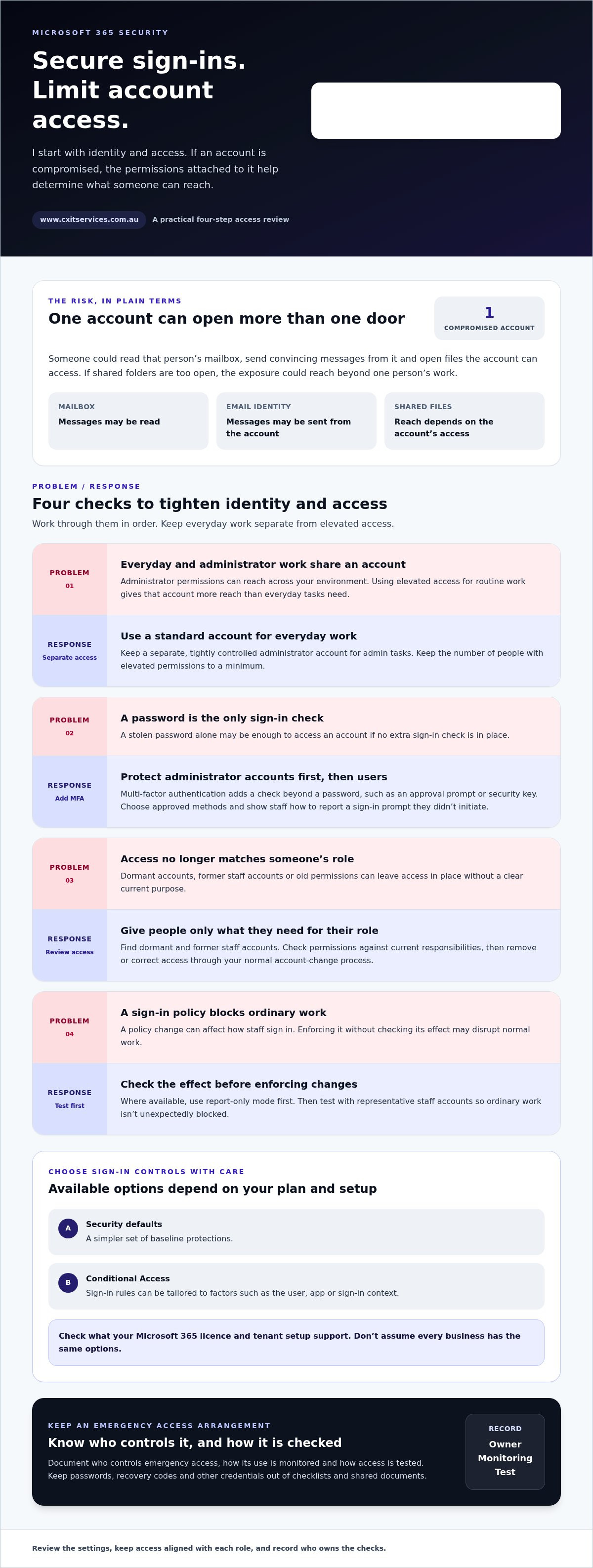
Picture an employee’s account being compromised. Someone could read their mailbox, send convincing messages from it and open files that account can access. If shared folders are too open, the exposure could reach beyond that one person’s work. Reviewing mailbox access and file permissions helps limit how far a compromised account can reach.
Microsoft’s cloud service availability is not the same as your business having a recovery plan. Decide how your team will respond if important information is changed, deleted or unavailable, and test that recovery process.
Which Microsoft 365 assets need protection first?
Start with the accounts and information that could cause the most harm if exposed. That usually means everyday user accounts, administrator accounts, Exchange Online mailboxes and shared files. Admin accounts deserve particular care because their permissions can reach across your environment.
For legal, accounting, medical and financial teams, client records, employee details and financial information need deliberate access controls. Give people access to what they need for their role, not everything the business holds. Review those permissions when staff responsibilities change, and check shared files for access that no longer has a clear purpose.
Why a Microsoft 365 subscription is not a complete security plan
A subscription provides access to Microsoft services and the capabilities included in your plan. Your business still needs to choose and configure relevant settings, decide who manages them and check they remain suitable as staff and systems change. A feature being available doesn’t tell you whether it’s enabled or set up appropriately.
Licensing matters too. Microsoft 365 plans can include different security features, so the controls available to your team may depend on your subscription. Identify your licences before building a checklist around a particular feature. That way, your plan reflects the tools you can use.
No single tool or setting covers every risk. Treat security as layers that work together, then document what’s configured and who reviews it. CX IT Services provides cyber security support to help businesses maintain oversight of their controls after setup.
Secure Microsoft 365 identities, sign-ins and administrator access
I start identity security with a simple question: if someone got hold of this account, what could they reach? A user may have access to email and shared files. An administrator can change settings and manage other accounts, so the risk is much broader.
Least privilege means giving each person only the access they need to do their job. Keep everyday work in a standard user account. Use a separate, tightly controlled administrator account for admin tasks, and keep the number of people with elevated permissions to a minimum.
Apply multi-factor authentication and protect privileged accounts
Multi-factor authentication (MFA) adds a sign-in check beyond a password, such as an approval prompt or security key. A stolen password alone is then less likely to be enough. Prioritise admin accounts, then apply MFA across the organisation. Record which authentication methods are approved and show staff how to report a sign-in prompt they didn’t initiate.
Keep an emergency access arrangement for the rare case that normal admin sign-in fails. Document who controls it, how its use is monitored and how access is tested. Don’t put passwords, recovery codes or other credentials in a checklist or shared document.
Review sign-in policies, user access and authentication methods
Security defaults offer a simpler set of baseline protections. Conditional Access allows sign-in rules to be tailored to factors such as the user, app or sign-in context. The available controls can depend on your Microsoft 365 licence and tenant setup, so check what your current plan supports before planning around a feature. Don’t assume every business has the same options.
Work through the controls in this order:
- Secure administrator accounts. Check who holds admin roles, remove access that’s no longer needed and protect those accounts with MFA.
- Enable MFA for users. Choose approved authentication methods and explain what a legitimate sign-in request looks like.
- Review access. Find dormant accounts, accounts belonging to former staff and permissions that no longer match someone’s role. Remove or correct access through your normal account-change process.
- Test sign-in protections. Review the effect of policy changes before enforcing them. Where available, use report-only mode first, then test with representative staff accounts so ordinary work isn’t unexpectedly blocked.
Keep a record of each change, who approved it and what you tested. Check that staff can still use the services and devices their roles require. A policy that looks neat on screen but locks out the team isn’t a useful control.
If you’d like help reviewing sign-in settings or maintaining them over time, talk with our team about Microsoft 365 security.
Is MFA enough? Compare Microsoft 365 email, device and sharing controls
Personally, I don’t treat MFA as the finish line. It makes a stolen password less useful, but it doesn’t inspect every email, secure every device or limit what a person can share. It’s one layer, not the whole job. The Microsoft 365 security best practices that matter here cover different points of exposure, with someone responsible for reviewing each one.
Use this table to turn broad security settings into practical review questions. What’s available can depend on your Microsoft 365 licence and how your environment is configured.
| Control | Risk it addresses | Practical review question |
|---|---|---|
| Email protection | Suspicious links, harmful attachments and messages impersonating a trusted person or business. | Which Exchange Online protections are enabled, and how do staff report suspicious messages? |
| Device health | Business information being accessed from unmanaged, outdated or poorly secured devices. | Can we identify which devices access work accounts, and are they kept up to date? |
| File sharing | Client or business files being exposed through broad sharing permissions or forgotten guest access. | Who can access shared SharePoint and OneDrive files, including external guests? |
| MFA and sign-in controls | Unauthorised sign-ins using compromised credentials. | Are sign-in protections applied consistently to staff and administrator accounts? |
Reduce email and phishing exposure in Microsoft 365
A convincing message can push someone to open a harmful attachment, follow a suspicious link or trust a request that appears to come from a colleague. Review the Exchange Online protections available under your licence, including how suspicious messages are handled. Make the reporting route clear too. Staff should know where to send a questionable email and what to do if they’ve already interacted with it.
Business email compromise needs its own response plan. If a mailbox is misused to request a payment or change bank details, staff need a way to verify that request through a separate, trusted channel. That’s part of your wider security process, not a replacement for reviewing Microsoft 365 settings.
Control devices, file access and external sharing
An unmanaged or outdated device may not have the same safeguards as a device your business oversees. Check which devices can reach work information and whether their status is visible to whoever manages IT. Then review SharePoint and OneDrive sharing settings, guest access and the ownership of shared files. Remove access that no longer has a clear business reason.
These checks need attention as staff, devices and projects change. CX IT Services provides Australian business cyber security support to help assess these controls. Ongoing Microsoft 365 management can also help keep settings and access reviews from going stale.
Microsoft 365 security best-practice checklist for regular reviews
A security setting is only useful if someone owns it and checks it still makes sense. Use this checklist as a working record, not a document that gets filed away after setup. Assign an owner for each item, keep evidence of what was reviewed and write down the next action.
There’s no single review interval that suits every business. Set a recurring review rhythm that fits your team, and bring checks forward when staff leave, roles change, new devices are introduced or file-sharing needs shift. These Microsoft 365 security best practices are easier to maintain when reviews are part of normal IT operations.
- Account changes. Owner: the person responsible for user access. Evidence: a record of accounts reviewed and access removed or changed. Next action: check for former staff, dormant accounts and permissions that no longer fit someone’s role.
- Administrator roles. Owner: your Microsoft 365 administrator. Evidence: the current list of admin role holders and any approved exceptions. Next action: remove unnecessary privileges and confirm each remaining role has a clear business reason.
- Authentication policies. Owner: the person managing sign-in settings. Evidence: current policy settings and the outcome of testing. Next action: review MFA coverage and test policy changes against everyday staff workflows.
- Email settings. Owner: the person overseeing email security. Evidence: a record of relevant Exchange Online protection settings and the staff reporting process. Next action: check that settings remain enabled as intended and staff know how to flag suspicious messages.
- Device status. Owner: whoever manages business devices. Evidence: a current view of devices accessing work information and any issues awaiting action. Next action: follow up on devices that are unmanaged, outdated or no longer in use.
- Sharing permissions. Owner: the relevant file or site owner. Evidence: a record of guest access, shared files and approved exceptions. Next action: remove access that’s no longer needed and assign an owner to shared information that lacks one.
Record settings, owners and exceptions
Keep the register simple. Note the control, its owner, when it was reviewed, what you found and any approved exception with a reason and review point. Record significant changes too. If a staff member suddenly can’t access a file, that history helps your team work out whether a policy change caused the problem or access changed unexpectedly.
A useful Microsoft 365 security review record shows what was checked, who owns it and what happens next.
Test recovery and staff reporting processes
File synchronisation and Microsoft service availability aren’t the same as a tested backup and recovery capability. Know what information is backed up, who can restore it and how the process is tested. Include business backup and disaster recovery in your recovery planning.
Give staff a clear route for reporting suspicious messages or unexpected sign-in prompts. Tell them not to approve a prompt they didn’t initiate, and make sure they know who to alert. CX IT Services provides Microsoft 365 security management to support ongoing oversight. Talk with our team about your Microsoft 365 security checklist.
Keep Microsoft 365 security effective with clear ownership and support
A one-off setup gives you a starting point. It doesn’t keep access, devices and policies aligned as people join or leave, responsibilities shift and systems change. Microsoft 365 security best practices stay useful only when someone owns the follow-up.
I’d ask a practical question: if a staff member leaves tomorrow, who removes their access, checks their shared files and records what changed? If the answer is unclear, the checklist needs an owner before it needs another security tool.
Choose an ownership model that fits your IT team
Make responsibility clear for account administration, policy changes, reviewing alerts and helping staff report issues. One person may coordinate these tasks, but they shouldn’t rely on memory or informal handovers. Record who can approve changes and who steps in when the usual owner is away.
If you have internal IT, co-managed support can give the team extra capacity and security oversight. CX IT Services is Australian-owned and supports businesses across Melbourne, Brisbane and Sydney. Our cyber security management services can help keep Microsoft 365 controls connected to wider security work.
Turn the checklist into an ongoing security process
Keep the process plain enough that your team will actually use it. Assign an owner to each control, record the current baseline, review changes that could affect access or protection, then track actions until they’re closed. Set a review rhythm that suits your business and revisit it when there’s a material change.
Managed IT services can help maintain settings and follow up on issues after the initial configuration. CX IT Services provides managed IT support for businesses in Melbourne, Brisbane and Sydney, connecting Microsoft 365 administration with the wider work of keeping systems running. Co-managed IT is another option when you have an internal team and want to share responsibility without leaving ownership murky.
A useful process leaves a short trail: what changed, who made or approved the change, what was checked afterwards and what still needs attention. That record helps your business spot unfinished work and gives the next person enough context to pick it up. No elaborate paperwork required. Just clear ownership and follow-through.
If you’re unsure whether your current team has the time or coverage to own the checklist, map the responsibilities first. Look for gaps in access administration, policy review, monitoring and staff escalation. Then decide which tasks stay in-house and where extra support would make the process more reliable.
For help working through those responsibilities, apply to discuss your business IT and security needs.
Make your next security review a practical one
Personally, I reckon the best next step is to turn one item on your checklist into a real task with an owner and a date. Start where you’re least certain, then build from there. Microsoft 365 security best practices work best as a routine your team can keep up with, not a one-off burst of effort.
If that work needs more hands, CX IT Services is an Australian-owned managed IT provider with over 26 years of industry experience. We support Microsoft 365, cybersecurity, managed IT, and backup and disaster recovery, with 24/7 support and on-site technicians across Australia.
You don’t have to sort every gap at once. A clear view of what’s in place, what needs attention and who owns the next step is a solid start.
Apply to discuss your business IT and security needs, and take the next step with a plan that fits your business.
Frequently Asked Questions
Does Microsoft 365 include security features by default?
Yes, but I wouldn’t assume the features in your plan are all switched on or suited to how your team works. List the security controls your business relies on, then confirm who checks that each one is active. That gives you a clearer view of what the subscription provides and what your team still needs to configure or manage.
Can Microsoft 365 be secure without multi-factor authentication?
I wouldn’t call password-only sign-in a sound security position for business accounts. If an account can’t use MFA for a genuine operational reason, document the exception, limit what that account can access and set a date to review the decision. That keeps the gap visible instead of letting a workaround drift on unnoticed. Make sure someone is accountable for resolving the exception.
What should I do if a Microsoft 365 account is compromised?
Tell the user to stop responding to suspicious messages and report the incident through the business’s agreed channel straight away. Preserve the message, approximate time and any actions taken, rather than deleting everything in a rush. Ask the IT contact to assess whether others received related messages or acted on requests from the account. If money or bank details are involved, verify the request independently before taking action.
Does OneDrive or SharePoint replace a business backup?
No, I wouldn’t rely on file storage alone as the business recovery plan. Ask the people responsible for important work which files or sites must be restored first, then run a recovery test using a sample item. Record whether the right version was recovered, who completed the test and what needs fixing. A restore that hasn’t been tried is still an unknown.
How often should a business review Microsoft 365 security settings?
Set a recurring review that fits the way your business makes IT decisions, then compare each review with the last one. Look for changes in account numbers, access exceptions and unresolved actions, not just whether settings appear unchanged. A useful review ends with named follow-ups and owners. If the same issue keeps carrying over, the process needs attention.
Do small businesses need Conditional Access in Microsoft 365?
Not automatically. Consider it if your business needs different sign-in rules for particular roles, applications or work situations, and has someone able to manage those rules. More complex policies can create extra work and disrupt access if they’re poorly handled. Weigh that operational effort against the control your business needs, rather than adopting policies simply because they’re available.
Can staff use personal devices to access Microsoft 365 securely?
They can, if the business sets clear limits for work information on personal devices. Decide whether staff can save files locally, what they should do if a device is lost and how access is removed when someone leaves. Put those expectations in a short, readable policy and make sure staff know where to get help. If the rules are vague, people will make their own calls.





 Microsoft Partner