
Relying on recycle bins? Here is your guide to Microsoft 365 backup and recovery. Learn what is actually protected, what gets lost, and how to choose right.
Does Microsoft 365 already back up your business data, or are you relying on sync, recycle bins and retention settings to do a job they weren’t built for? It’s easy to assume your data is protected, but harder to know what you can restore. Microsoft 365 backup and recovery depends on which workloads you use, how your tenant is configured and what you need back after accidental deletion, account compromise or ransomware.
Microsoft provides recovery features, and its Microsoft 365 Backup service covers Exchange Online, SharePoint Online and OneDrive. It doesn’t cover Teams messages. Sync helps keep files aligned across devices, while retention settings manage how long data is kept. Neither necessarily provides all the recovery options your business needs.
This guide explains how to identify what needs protection, check Microsoft’s recovery options and decide whether a separate backup solution may add value. It also covers what to compare, including workload coverage, restore options, data separation and provider responsibilities. Choose based on what you can actually recover, then test your restore process before you need it.
Key Takeaways
- List the files, messages and records your business must be able to restore, then check whether your current setup covers them.
- Compare recovery options by what they restore, how far back they go and which limitations you need to verify.
- Use the Microsoft 365 backup and recovery checklist to set business recovery objectives and test whether a solution can meet them.
- Before choosing a provider, clarify who handles setup, monitoring, restore requests, reporting and ongoing oversight.
- Decide whether your team has the time and expertise to manage recovery internally or would benefit from managed backup and disaster recovery support.
Microsoft 365 backup and recovery: what does your business actually need?
Start with the recovery question, not the product list: what must your business get back, and who needs to restore it? Assess whether you need independent backup against your actual recovery requirements. Microsoft 365 backup and recovery is the process of protecting business data so it can be restored after deletion, corruption, compromise or another disruption.
Cloud hosting helps keep services available, but it doesn’t tell you whether a particular mailbox, file or site can be restored to the right point in time. The answer depends on the workload, tenant configuration, retention settings and backup design. Check what’s covered, how restoration works and who is responsible for carrying it out. CX IT Services provides backup and disaster recovery support as part of a managed recovery process.
Which Microsoft 365 workloads and business data are in scope?
Map the information your business relies on before comparing solutions. Include Exchange Online mailboxes, OneDrive files, SharePoint sites and libraries, and Teams content. Identify the specific mailboxes, files, sites, channels and business records that would disrupt work if they disappeared.
Coverage varies by service and solution. As of September 2026, Microsoft 365 Backup covers Exchange Online, SharePoint Online and OneDrive, but not Teams messages. Teams content can also involve connected services, so check exactly what is protected and restorable in your setup. Don’t assume that covering one workload protects everything shown in Teams.
Backup, sync and retention are different things
These tools can all help manage data, but they solve different problems. Sync keeps copies or changes aligned across locations or devices. Retention preserves or manages data according to configured policies. Backup creates a separate recovery copy and process, although what that copy can restore depends on the solution’s design. For a plain-language grounding in data backup, distinguish between keeping information and being able to recover it.
For example, if someone deletes a synced file, that deletion may sync across connected locations. A recycle bin or retention policy may help recover the file, depending on settings and timing. A backup may offer another recovery route, but only if it includes the file and required version and they’re still within the recovery window. Test the steps instead of assuming one feature covers every scenario.
- Sync: keeps changes aligned, including changes you may not want.
- Retention: manages how long data is kept under configured rules.
- Backup: provides a recovery copy, subject to coverage and restore limits.
For each workload, ask what data matters, how quickly it must be restored, how far back you may need to go and who can perform the restore. Those answers give you a practical basis for assessing Microsoft 365 backup and recovery.
What Microsoft 365 recovery options protect, and where gaps may remain
Assess recovery options by what they can restore, how far back they can go and what your business must do to get data back. Microsoft 365 includes useful recovery features, but recycle bins, retention settings and dedicated backup aren’t interchangeable. Availability and behaviour can vary with licensing, tenant configuration and Microsoft changes, so check your current setup before relying on a particular feature.
A recycle bin can help recover deleted items, but it isn’t a complete recovery strategy. It may not cover the workload, version or recovery window you need in every situation.
What built-in Microsoft 365 tools can help recover
Recycle bins can help with recent deletions. Version history can help restore an earlier file version. Retention features manage how long data is kept under configured policies, but they aren’t the same as a separate backup designed for operational recovery. Check the settings and recovery steps for each workload rather than assuming one rule applies across Microsoft 365.
As a guide, deleted Exchange Online items are held in the Recoverable Items folder for 14 days by default, configurable up to 30 days. SharePoint and OneDrive use a 93-day, two-stage recycle bin. Verify these details against your plan and tenant configuration. For Microsoft’s service scope and current documentation, see Microsoft 365 Backup.
Compare recovery options by the job they do
| Capability | Likely use | Limitations to verify | Decision-maker question |
|---|---|---|---|
| Recycle bin | Recovering recently deleted items | Recovery window, workload and item limits | Can we retrieve the item for as long as we need? |
| Version history | Returning a file to an earlier version | Availability, version settings and supported content | Can we restore the right version without losing later work? |
| Retention features | Managing how long information is kept | Policy scope and how retained data is retrieved | Does this meet our recovery need, or a data-management need? |
| Dedicated backup | Recovering protected data from a separate backup process | Workload coverage, retention, restore options and administration | What can we restore, and who carries out the restore? |
When a separate backup may be worth assessing
Assess a separate backup if your business needs more control over recovery after accidental deletion, account compromise, ransomware or administrative error. Check whether it can restore individual items as well as larger data sets, and whether it covers the workloads you rely on. No solution covers every event automatically. Confirm exclusions, access controls and restore responsibilities before committing.
As of September 2026, Microsoft 365 Backup covers Exchange Online, SharePoint Online and OneDrive, but not Teams messages. Check whether your Teams content or connected services need separate protection. If you’re reviewing the platform alongside recovery, CX IT Services’ Microsoft 365 services may be relevant to your assessment.
How to compare Microsoft 365 backup and recovery solutions
Compare Microsoft 365 backup and recovery solutions by what your business can restore, how it can restore it and who owns the work. A long feature list won’t help if a critical mailbox is out of scope or nobody knows how to start recovery.
Check coverage, retention and restore controls
Ask providers to specify which Exchange Online, OneDrive, SharePoint and Teams data types are protected. Don’t accept a broad “Microsoft 365 is covered” answer without the detail. Confirm how administrators restore an individual email, file or folder, a mailbox, or a larger workload. Ask whether restoring one item could overwrite newer work.
Then check retention settings, how deletions are handled and what recovery limits apply. Ask for current product documentation, including exclusions and restore limits. Test the claims against your own requirements. A provider’s description and your tenant’s actual configuration may not be the same.
Check security, ownership and support
Find out who can access backup data and how that access is controlled. Ask whether backup administration is separated from ordinary user accounts, how access is reviewed and what happens if an administrator’s account is compromised. If security oversight is part of your assessment, review the provider’s cyber security management services alongside the recovery arrangements.
Get responsibilities in writing. Who monitors backup failures? Who investigates alerts and initiates recovery? What support hours and escalation paths apply? Check what reports you’ll receive and who reviews them. A backup job that fails quietly offers little reassurance.
Verify data location and contractual terms
Ask where backup data is stored, who can access it and how it is protected. Check the contract for retention, data retrieval, deletion at the end of the agreement and any limits on support. If a provider makes compliance claims, ask what they mean, what evidence supports them and whether they apply to your business and data. Check the terms rather than relying on a sales statement.
Make recovery part of the comparison. Ask for a practical restore test before committing or renewing, then record what worked and what took longer than expected. This guide to testing Microsoft 365 recovery offers examples to help shape a test. If you want help assessing coverage and recovery responsibilities, you can request a discussion about your backup and recovery needs.
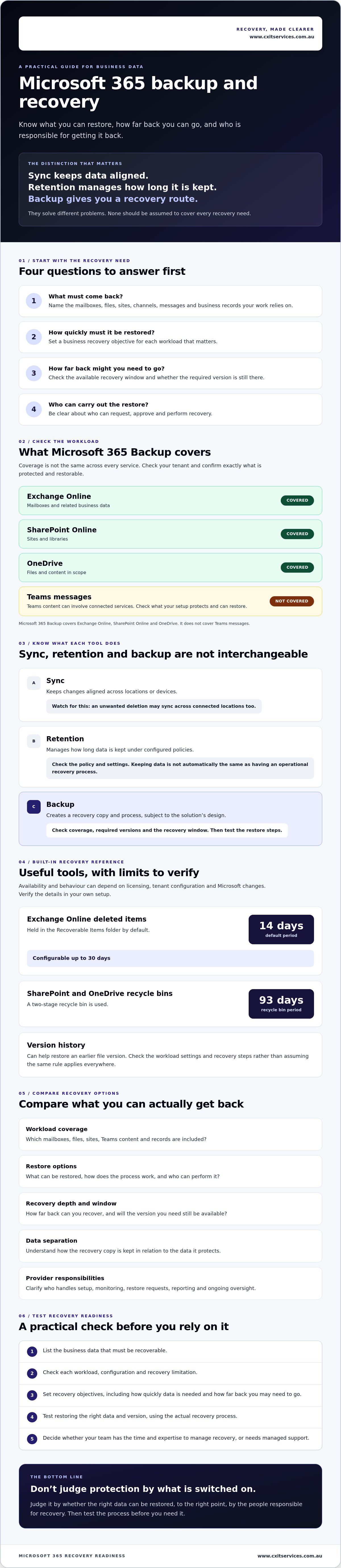
A practical checklist for testing Microsoft 365 recovery readiness
Recovery readiness is something to prove, not assume. Before choosing or renewing a solution, agree what needs to come back first, test a restore under controlled conditions and record the result. A successful backup report is useful, but it doesn’t show by itself that your team can recover usable data.
Set recovery priorities before comparing providers
Start with business impact. Which users, Microsoft 365 workloads and business processes must return first? One firm might prioritise access to a shared client file library and key mailboxes, while another business may need a different order. Ask the people responsible for those processes how much downtime and data loss they can accept.
Put those answers into recovery objectives. The recovery point objective (RPO) is how much recent data the business can afford to lose. The recovery time objective (RTO) is how long it can operate without the affected data or service. Treat them as business targets, not promises. Ask the provider to confirm what is achievable for your workloads and restore scenarios.
Test restores and document what happens
Use this checklist before selecting or renewing a Microsoft 365 backup and recovery solution:
- Choose priority data. Select representative items, such as an email, a file, a folder and a business-critical workload.
- Agree the test process. Confirm the test is authorised, controlled and won’t overwrite live data or interrupt staff.
- Assign restore roles. Record who can request, approve and perform each type of restore, including who steps in if the usual person is unavailable.
- Run the restores. Check that each item returns to the intended location and version, and note how long the process takes.
- Check usability and access. Confirm the recovered data opens correctly and only the appropriate people can access it.
- Record the result. Document the date, owner, outcome, exceptions and follow-up actions. Assign someone to close each action.
- Agree the next review. Set a point to repeat the test, especially after changes to workloads, access or recovery arrangements.
Regular restore tests turn a backup claim into evidence that your business can recover. If a test fails, record what needs fixing and agree who will do it. Broader disaster recovery planning can help connect Microsoft 365 restores to the rest of your recovery arrangements.
Want help reviewing your recovery readiness and responsibilities? Talk with CX IT Services about backup and disaster recovery support.
Choosing managed Microsoft 365 backup and recovery support
The decision comes down to ownership. If your internal team has the time and skills to configure protection, review failures and manage restores, in-house administration may suit. If those tasks compete with other priorities, or nobody is clearly responsible for recovery, managed support may help keep the process moving.
Compare the work, not just the software. Ask who handles implementation, ongoing monitoring, restore assistance and reporting. Make sure someone on your side can see what’s happening and knows who to contact when a restore is needed. Managed IT support may suit your business if it also needs ongoing oversight of its wider IT environment.
Questions to ask before appointing a backup provider
Get clear answers before signing. Ask what the provider configures and monitors, what reports you’ll receive and what sits outside its responsibility. Confirm how onboarding works, who can access backup data, how access changes when staff roles change and what happens when the service ends.
Then ask how a restore is escalated. Who can request and approve it? Who performs the work? How will the provider keep your team informed during an incident? Get responsibilities, support hours and escalation steps in writing. A vague hand-off is no use when people are waiting for their data back.
When CX IT Services may fit your requirements
CX IT Services is an Australian-owned provider serving businesses nationally. Its services include managed IT support and backup and disaster recovery, allowing businesses to assess recovery as part of a broader support arrangement rather than as an isolated software purchase.
Before deciding, confirm that the proposed service matches your workloads, recovery objectives and expectations for reporting and restore assistance. To discuss whether it fits your business, apply to discuss your Microsoft 365 backup and recovery needs.
Make recovery something your business can prove
The right Microsoft 365 backup and recovery setup is one your team can use under pressure, not simply the one with the longest feature list. Start with the data and workloads your business can’t afford to lose. Check coverage, agree realistic recovery targets and test that restores work as expected.
Keep ownership clear. Someone needs to know who monitors protection, approves a restore and follows up when a test finds a gap. That’s how backup becomes part of a recovery process, rather than another setting everyone assumes someone else is watching.
CX IT Services is an Australian-owned and operated managed IT provider with more than 26 years of industry experience. Its services include 24/7 support and on-site technicians across Australia.
To review your requirements, apply to discuss your Microsoft 365 backup and recovery needs. A clear plan and a tested restore give your business a more practical basis for recovery.
Frequently Asked Questions
Does Microsoft 365 automatically back up my business data?
No. Don’t treat Microsoft 365’s standard recovery features as a complete backup of every workload. As of September 2026, Microsoft’s Microsoft 365 Backup service covers Exchange Online, SharePoint Online and OneDrive, but not Teams messages. Check your plan, tenant settings and current service details before relying on recovery. Then assess whether separate Microsoft 365 backup and recovery is needed for your business.
Is OneDrive sync the same as a backup?
No. Sync and backup do different jobs. Sync keeps files and changes aligned across locations or devices, so an unwanted change or deletion may sync too. It doesn’t necessarily provide an independent recovery copy or the version you need. Check the available recycle-bin and version-history options, then confirm whether your backup arrangement can restore the right file and version if those options fall short.
What Microsoft 365 data should a business back up?
Start with the information staff need to keep work moving: important Exchange Online mailboxes, OneDrive files, SharePoint sites and libraries, and Teams content. Identify specific client or patient records, shared folders, project files and business correspondence that would disrupt operations if lost. Check how each item is stored and which service holds it. Teams content can involve connected services, so verify exactly what a proposed solution protects and restores.
How often should a business test Microsoft 365 recovery?
Run regular, documented restore tests, and test again after significant changes to workloads, configuration or recovery arrangements. There’s no single interval that suits every business, so set one based on the importance of the data and how often your setup changes. Test representative items and workloads. Record whether the data was usable, how long recovery took, who handled it and what needs fixing. Don’t wait for an incident to find a gap.
Can Microsoft 365 backup recover data after ransomware?
It may help, but recovery isn’t automatic. The affected data must be covered, and a clean version must be available from a suitable recovery point. Confirm what the backup includes, how far back it goes, who can access or delete it and how a restore works. Backup doesn’t remove ransomware or secure compromised accounts, so include incident containment and checks that restored data is safe to use.
What should I ask a Microsoft 365 backup provider?
Ask which Exchange Online, OneDrive, SharePoint and Teams data types are covered, what can be restored and what retention or recovery limits apply. Confirm where backup data is stored, how access is controlled, who monitors failures and who can request, approve and perform restores. Before committing, ask for support hours, escalation steps, reporting, exclusions, responsibilities, contract terms and evidence for any compliance claims in writing.





 Microsoft Partner