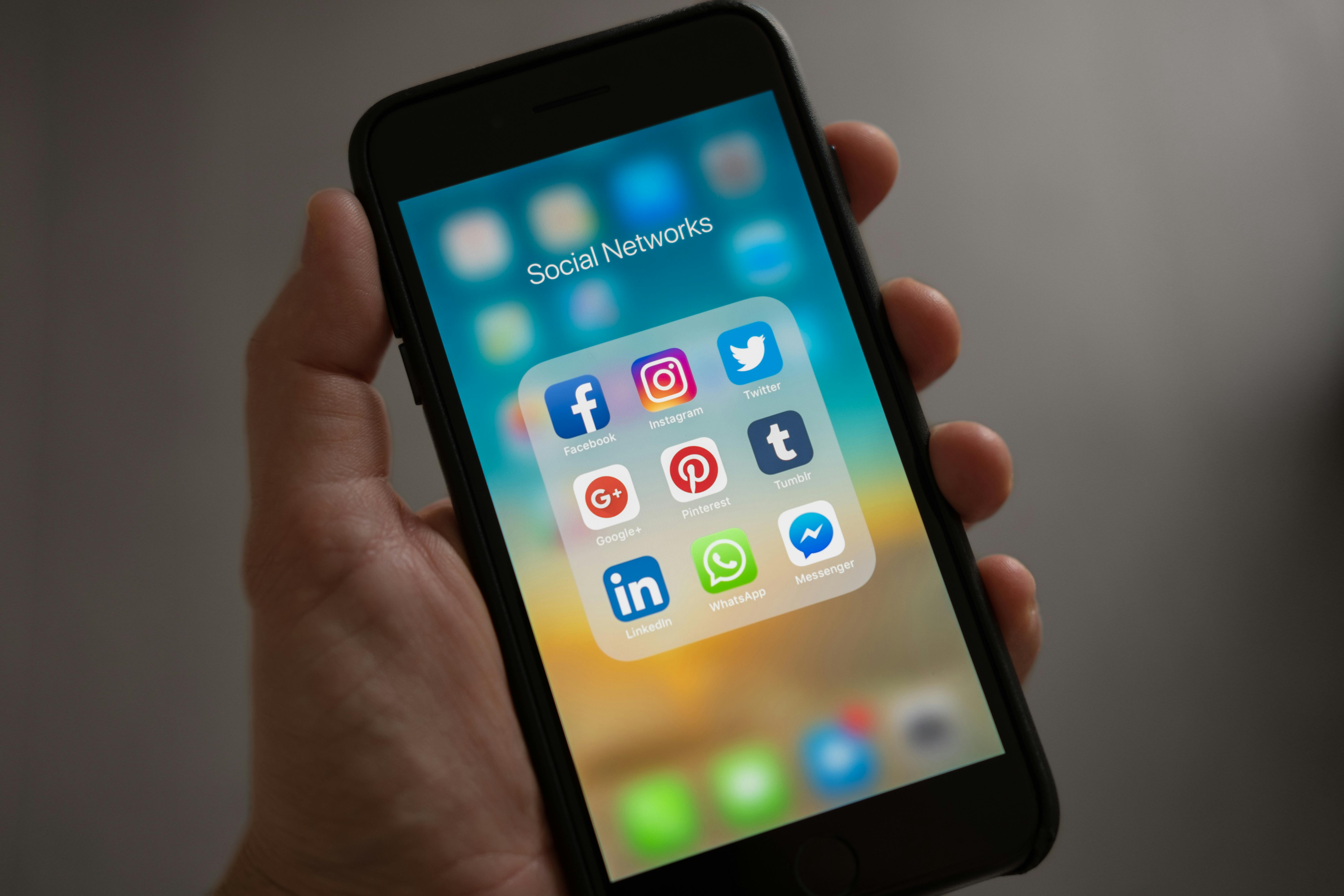
Is your business iPhone lagging? Try these 10 practical tips to clear storage, optimize settings, and bring your Apple device back to peak performance.
A slow iPhone affects productivity throughout the day - slow app launches, laggy typing, delayed notifications. Before concluding the device needs replacement, work through these ten steps. Most slow iPhones improve significantly with targeted maintenance.
1. Check Available Storage
iOS requires free storage to operate efficiently. When storage is near capacity, the OS has minimal working space for temporary files, app caches, and virtual memory - performance degrades noticeably.
Check: Settings → General → iPhone Storage. If available storage is under 2-3GB, address storage before anything else.
Fix:
- Delete unused apps (hold app icon → Remove App)
- Offload apps you rarely use but want to keep (Settings → General → iPhone Storage → select app → Offload App - this removes the app but keeps its data)
- Review Photos - large photo libraries are the most common storage consumer. Enable iCloud Photos with “Optimise iPhone Storage” to store full-resolution photos in iCloud while keeping smaller thumbnails on device.
- Clear browser cache (Settings → Safari → Clear History and Website Data)
2. Restart the Device
It sounds too simple, but iPhones that have not been restarted in weeks accumulate memory fragmentation and background process buildup. A full restart clears this.
How: Hold the side button + either volume button → slide to power off → wait 30 seconds → power on. (Not just a lock screen dismiss - a full power cycle.)
For a business iPhone used daily, a weekly restart is sensible practice.
3. Update iOS
Running an outdated iOS version means missing performance optimisations included in updates. Apple regularly releases updates that include performance improvements, particularly for older devices.
Check: Settings → General → Software Update. Install any available update.
If you are running a very old iOS version due to concern about compatibility with managed configurations (Intune, MDM), check with your IT provider before updating - they may have a specific approved version.
4. Identify Battery Health
iPhone batteries degrade over charge cycles. When battery health drops below 80%, iOS automatically enables performance management - throttling CPU speed to prevent unexpected shutdowns. This is the cause of the notorious “slow iPhone after update” experience that preceded Apple’s battery program.
Check: Settings → Battery → Battery Health & Charging. If Maximum Capacity is below 80%, battery replacement will restore full performance.
Battery replacement cost: Apple Store or authorised service provider battery replacement for current iPhone models runs $120-180 AUD. For a device that is otherwise in good condition, this is often the highest-impact single action to restore performance.
5. Turn Off Background App Refresh for Unnecessary Apps
Background App Refresh allows apps to update their content in the background while the phone is not actively being used. With many apps refreshing simultaneously, this consumes CPU, RAM, and battery.
Fix: Settings → General → Background App Refresh → Review which apps actually need this. Email and calendar apps generally benefit from it. Most others do not need constant background refresh - they update when you open them.
Turn off Background App Refresh entirely for apps you only check manually.
6. Disable Unnecessary Location Services
Apps with “Always On” location access run location services continuously. This consumes battery and CPU, and slows down other operations.
Fix: Settings → Privacy & Security → Location Services. Review each app. Most should be set to “While Using” rather than “Always.” Apps that genuinely need always-on location (navigation apps you actively use, family tracking if that applies) can retain it; everything else should not.
7. Reduce Motion and Transparency Effects
iOS animations and transparency effects are visually polished but consume GPU resources. On older devices, reducing these effects noticeably improves responsiveness.
Fix:
- Settings → Accessibility → Motion → Turn on “Reduce Motion” (replaces zoom animations with cross-fades)
- Settings → Accessibility → Display & Text Size → Turn on “Reduce Transparency” (simplifies UI backgrounds)
The visual difference is minor; the performance difference on an older device can be significant.
8. Clear App Caches
Apps accumulate cache data over time - images, downloaded content, temporary files. While iOS manages this automatically to some extent, heavily used apps can grow large caches.
Fix for specific apps: Delete and reinstall the app. This is the most reliable way to clear an app’s cache without losing data (which is synced to the cloud for most business apps).
For Safari specifically: Settings → Safari → Clear History and Website Data.
9. Check for Problematic Apps
Some apps are significantly more resource-intensive than others - particularly social media apps with continuous feed loading and video playback. If the phone slows noticeably at specific times or when specific apps are open, the app may be the cause rather than the device.
Check: Settings → Battery → Battery Health & Charging → scroll down to Battery Usage by App. Review which apps are consuming disproportionate battery in the background.
10. Factory Reset as a Last Resort
If all other steps fail to restore acceptable performance, a factory reset removes accumulated software cruft and returns the device to a clean state. Set up as new (rather than restoring from backup) produces the best results - restoring from backup can restore accumulated problems along with your data.
Before resetting:
- Ensure all data is backed up (iCloud backup or iTunes/Finder backup)
- Note your app logins and passwords
- If the device is managed (Intune, Jamf), contact IT before resetting - MDM profiles will need to be reinstalled
If performance remains poor after a clean setup, the device has a hardware limitation (storage speed degradation, CPU throttling due to battery health) and replacement is the appropriate next step.
CX IT Services manages mobile device procurement and support for Melbourne businesses. Contact us if you need help with device performance or mobile device management.